Creating & importing projects
Projects are at the heart of your open source work on openCode. This is where you manage source code, document developments, and work in a team.
Checklist for creating a project
- Create a project in GitLab or import an existing project
- Create a README.md file
- Select a license and add the appropriate
LICENSEfile - Create a publiccode.yml file and have the project added to the software directory
How to create a new project
- Log in at https://gitlab.opencode.de or click on the GitLab icon in your dashboard.
- Click on the Button New Project on the top right corner.

- Select a template or start with a blank project.
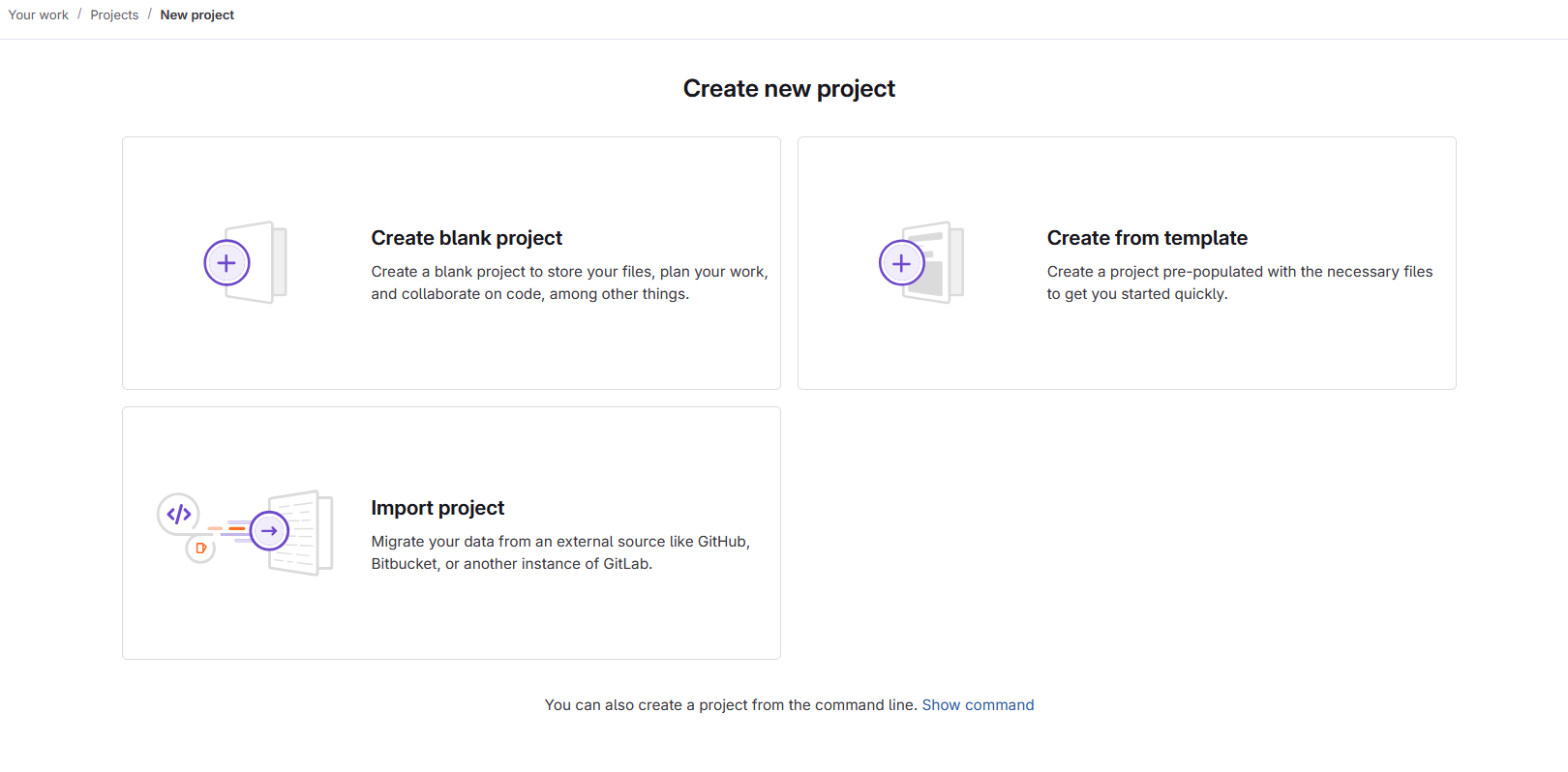
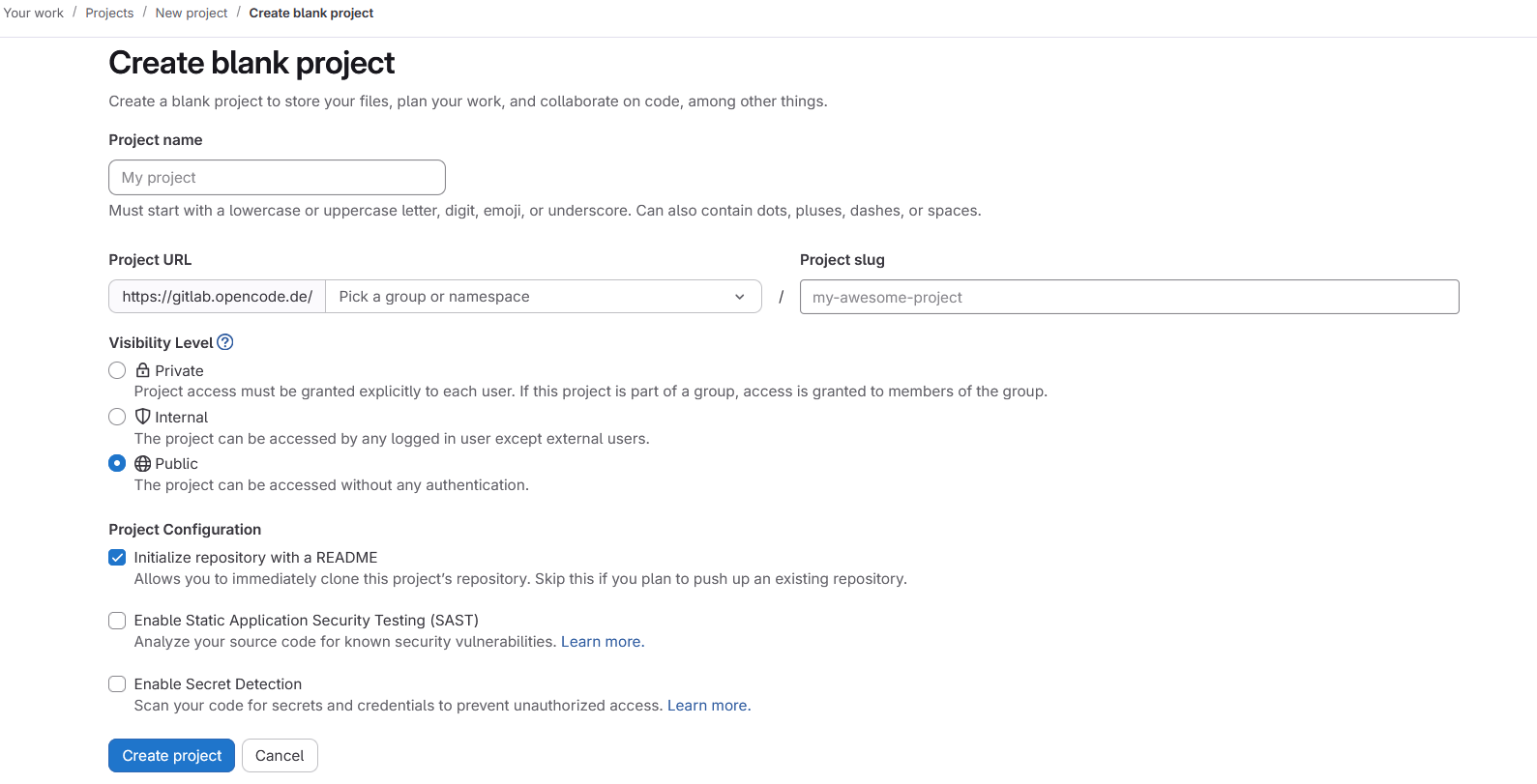
- Give your project a name and a short description. The URL of your project will be created based on the name you choose. However, you can also customize this.
-
Set the visibility: Public: Anyone can see the project, Internal: Only logged-in users have read access, Private: Only you and explicitly invited people.
Info
openCode thrives on openness. If possible, use the “Public” setting if the project does not contain any sensitive information. You can adjust the visibility at any time. In a group, it is possible for individual projects to have different visibility settings.
-
Finally, you can invite public administration employees and your service providers to join the project by adding their email addresses. You can also manage project members at a later date.
- Complete the settings according to your preferences. Confirm by clicking Create project. The project settings can be adjusted at any time.
Import existing project
Do you have a project on GitHub or another GitLab, for example? No problem: When creating the project, select the Import tab and follow the instructions.
Collaboration in projects
To ensure that projects run smoothly, there are different roles with corresponding rights:
Roles in GitLab
| Rolle | Description |
|---|---|
| Owner | Project or group owners can manage everything |
| Maintainer | Project or group administrators have access to project resources and can manage project settings, pipelines, issues, merge requests, and project members (no group management) |
| Developer | Can submit code (push), create merge requests, and edit issues |
| Reporter | can create and comment on issues, have read access to the code |
| Guest | have limited read access |
A detailed overview can be found in the GitLab documentation.
Collaboration in everyday life
- Use Issues to record tasks, bugs, or ideas
- Use Merge Requests to discuss changes and approve them collaboratively
- Document the project description, installation instructions, other important information, and the license in
README.md
In addition to the GitLab interface, you can exchange ideas in the openCode forum.
Examples
The following pages contain examples of projects in openCode GitLab:
Frequently asked questions and problems
Why can't I create new projects?
If you are part of the public administration but cannot create projects, this is probably because the domain of your email address (“the part after the @ sign”) has not yet been approved by us. To get approval, please contact our support team by email at info@opencode.de.
If you are not part of the public administration but still want to contribute to a project, you need an invitation to the project or group from someone in the public administration
How do I participate in other projects?
- You can clone other people's projects just like your own projects.
- Projects on openCode have their own rules for accepting code contributions and merge requests.
- Open source thrives on collaboration, so don't be afraid to offer your support to other projects, create issues in the projects, or report bugs.
How can I create an independent copy (fork) of another project?
If you would like to use or further develop an existing project from another public administration organization, you can create a fork. Creating a fork only makes sense if you plan to reuse or further develop the project yourself, or if there is a chance that access to the project will no longer be possible.
To fork a project, follow these steps:
-
Open the project you want to copy in openCode GitLab and click on “Fork” in the upper right corner.
-
A configuration interface similar to the one for creating a new project (see above) will open. Follow the steps to create your own copy of the project.
How can I mirror a project
If you want to mirror a project, it is best to follow the mirroring instructions. The instructions explain exactly how to set up pull or push mirroring for your project.
What are the requirements for project content?
Information on the requirements for project content can be found in our knowledge base at the following URL: https://opencode.de/de/wissen/rechtssichere-nutzung/anforderungen-an-inhalte#Aufgaben-der-Repository-Owner-/-Maintainer
The article covers the following topics:
- Licensing requirements:
- Licensing requirements based on the OSI specification
- Recommendation to use the REUSE specification
- Use of components with unapproved licenses
- Provision of compilations (binaries)
- Requirement to use an SBOM (standardized bill of materials)
- Use of open source compilations for which no right of use can be proven or whose license conditions cannot be met.
Furthermore, the article in the guide to adding a suitable open source license can provide you with guidance.